How to use the MailerLite Manager iOS App?

MailerLite has launched an iOS app called MailerLite Manager. It is an easy way to get in touch with your automations, campaigns, and check the progress of your workflows in one place. You don’t need to have a laptop or PC to use the MailerLite while having this app.
In this guide, I will share my experience with this app and also how to use it for the first time. However, you need to have an iOS device with version 15.0 or above to use this app.
What is a MailerLite Manager iOS App?
MailerLite Manager is the mobile version of MailerLite for iOS devices. It lets you manage your email campaigns, automations, and subscribers directly from your iPhone or iPad. You can check the progress of your workflows, see campaign stats, and even create or edit campaigns without opening a laptop.
The app keeps everything simple and in one place. It is perfect for marketers, small business owners, or anyone who wants to manage emails on the go. With version 15.0 or above, you get a smooth experience. Think of it as carrying your email marketing office in your pocket—no coffee required.
Features of MailerLite Manager
Here are the features that you can avail from this iOS app.
1. Create and Send Rich-Text Emails
With the app, you can create emails with text, images, links, and formatting. It is simple and fast. You can send campaigns without opening a computer.
2. Dashboard for Easy Monitoring
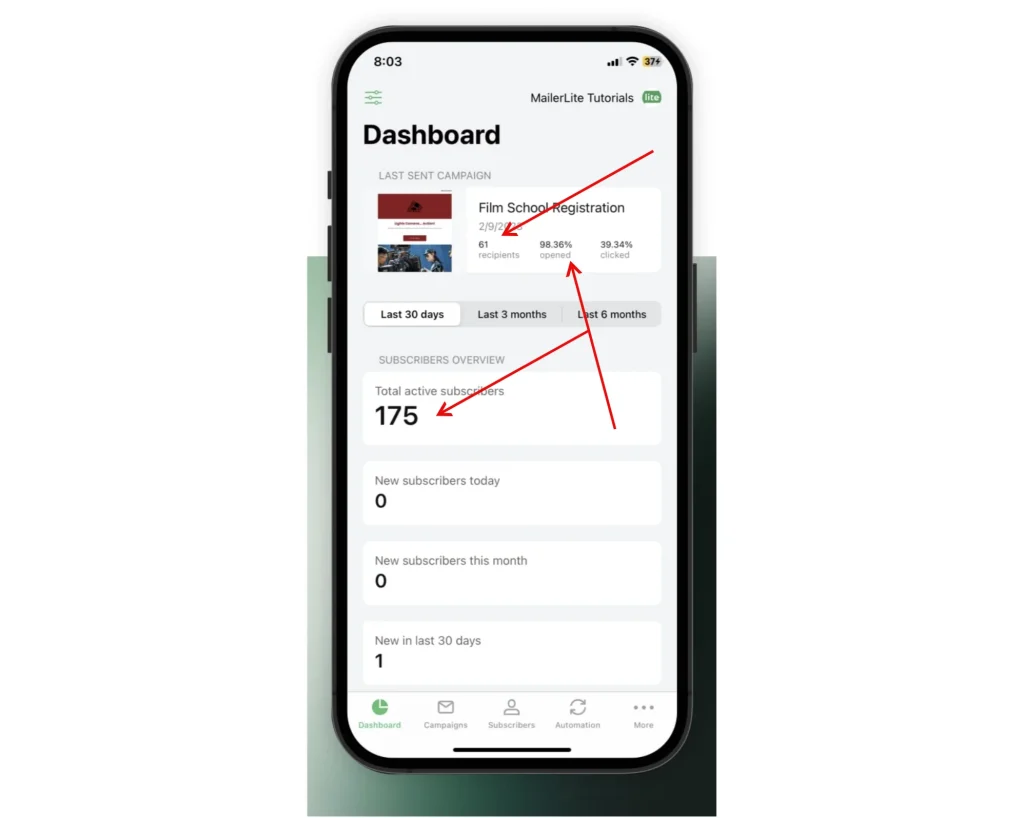
The dashboard shows all important metrics. Track email performance, automation stats, form submissions, e-commerce sales, and new subscribers. Everything is clear and easy to read.
3. Preview and Schedule Campaigns
You can preview your emails before sending. Schedule campaigns to go out at the best time. This saves time and improves engagement.
4. Import Subscribers Easily
The app allows you to import subscribers from files or other tools. You can add contacts quickly and keep your list updated.
5. Monitor Automations, Forms, and Analytics
Keep an eye on all your automations, forms, and site analytics. You can check if workflows run smoothly and see how forms perform.
6. Home and Lock Screen Widgets
Add widgets to your home or lock screen for quick access. You can check metrics, stats, or updates without opening the app.
7. Access Educational Resources
MailerLite Manager provides tutorials and guides inside the app. You can learn new tips and improve your email marketing skills anytime.
How to Use This App?
Now let’s find out the way to use it. Here are the basic tasks that you can do:
1) Send Campaigns:
You can send campaigns directly from the MailerLite Manager iOS app. Note that the app supports only rich-text campaigns. For other campaign types, you need to use the desktop website.
Step-by-Step Guide:
- Open the app and go to the Campaigns tab.
- Tap New Campaign at the top right corner.
- Set up your campaign details:
- Enter a campaign name
- Add a subject line
- Choose the sender name and email
- Select the language
- Tap Next to move to the content page.
- Write your email content. Keep it simple and clear.
- Preview your email to see how it will look to subscribers.
- Add images: tap the image icon, then choose a photo from your gallery or take a new picture.
- Tap Next to proceed.
- Select your recipients for the campaign.
- Tap Save and Review.
- Review all details, and once everything looks good, send your campaign.
Sending campaigns on the go is fast and easy. Just follow these steps, and your emails will be ready without needing a computer.
2) Dashboard Customization Guide:
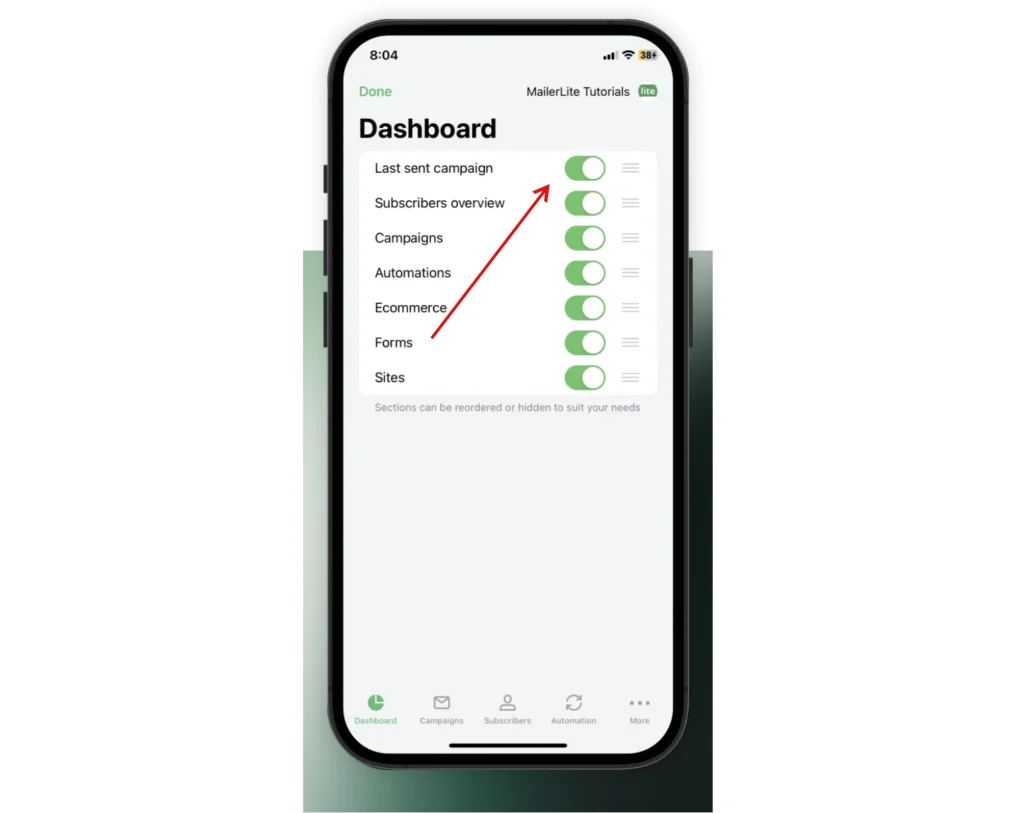
- From the app’s dashboard, tap the menu icon (three dots) in the upper left corner.
- You will see options to show or hide cards on your dashboard. Turn each option on or off as you like.
- To rearrange the cards, tap and hold the three horizontal lines next to a card.
- Drag the card to your preferred position and release.
3) Managing The Activity of Your Subscribers:
The MailerLite Manager iOS app lets you keep track of your subscribers’ activity easily. You can see who opened your emails, clicked links, or joined your lists.
Step-by-Step Guide:
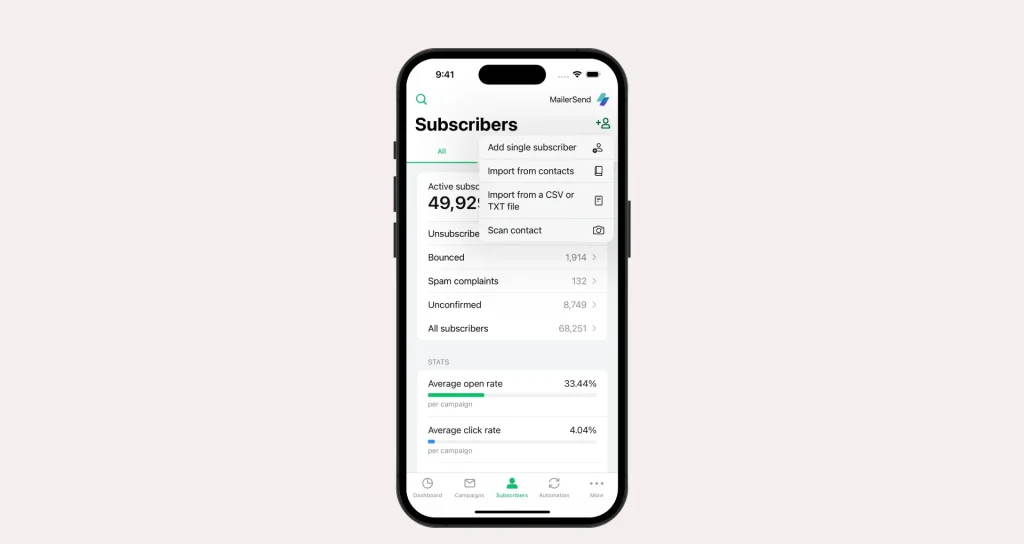
- Open the app and go to the Subscribers tab.
- Tap on a subscriber to view their activity details.
- You can see:
- Opened emails
- Clicked links
- Subscription history
- Sign-up source
- You can add tags or update subscriber information directly from the app.
- Use this information to segment your audience or send targeted campaigns.
When to Choose an App Over a Desktop Site?
The MailerLite Manager iOS app is great for managing your email marketing while on the move. You should choose the app when you need quick access to your campaigns, automations, and subscriber data. It is perfect if you are traveling, commuting, or away from your computer.
The app is useful for checking campaign performance in real time. You can see who opened your emails, track clicks, and monitor subscriber growth. This way, you stay updated without waiting to reach your laptop.
Use the app to send quick rich-text campaigns. For full-featured campaigns or advanced design options, the desktop site is better. But for simple emails, the app does the job efficiently.
You can also manage automations, forms, and workflows on the go. Turn automations on or off, see which emails are performing best, and check analytics, all from your phone.